Speaker notes
Read them on the phone. They are read on this computer and sent only to that phone.
Presentation remote
Pilot runs on the computer that has the slides open. The phone in your hand is the remote — notes, next, and a pointer. Nothing leaves the room.
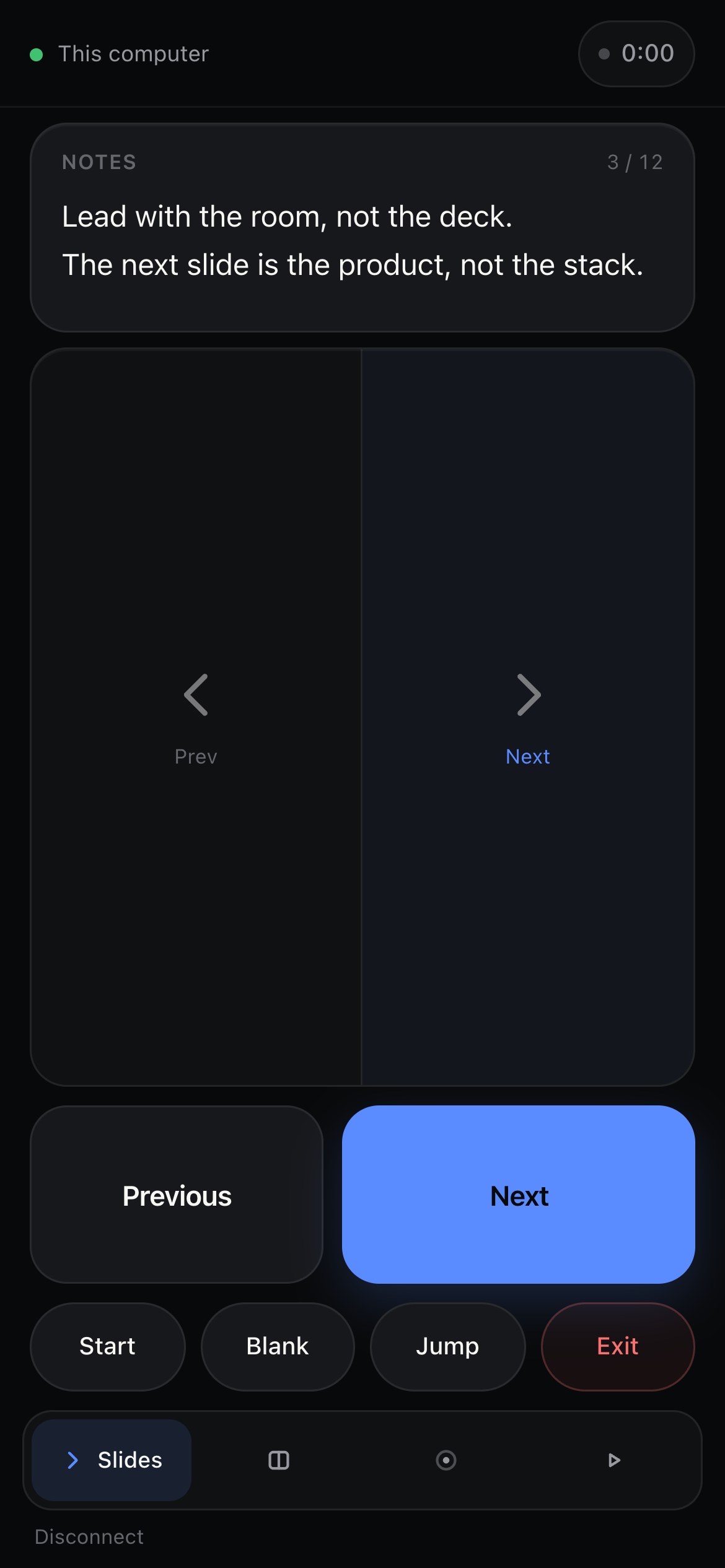
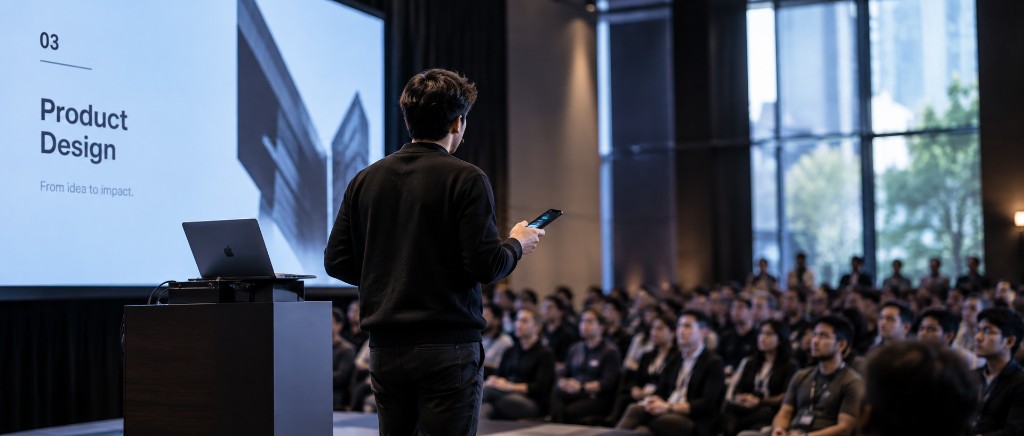
The phone sends next. The computer changes the slide. The internet is not involved.
A drawing of that path. Tap Next, or watch it. Nothing on this page is connected.
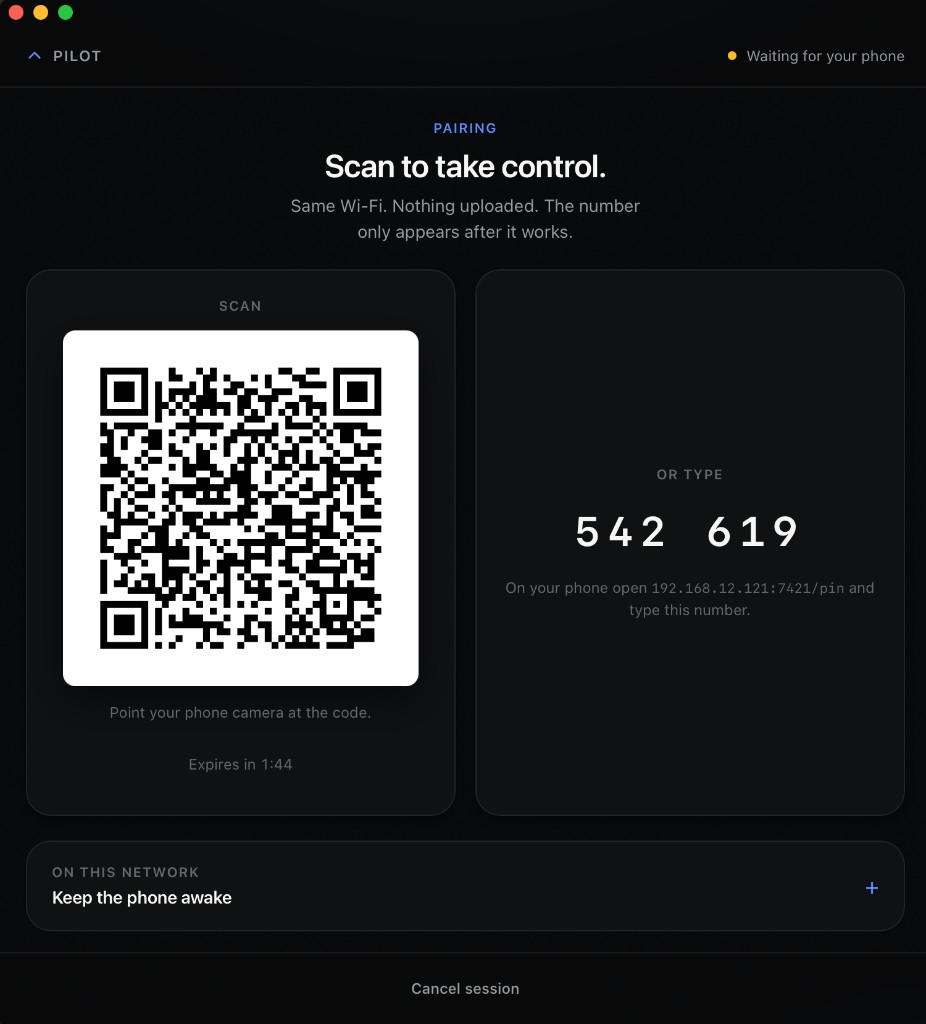
The computer shows a code. The phone you already have opens it. There is no app to install.
The phone
A drawing of pairing. The code on this screen is not live, and it will not pair with anything.
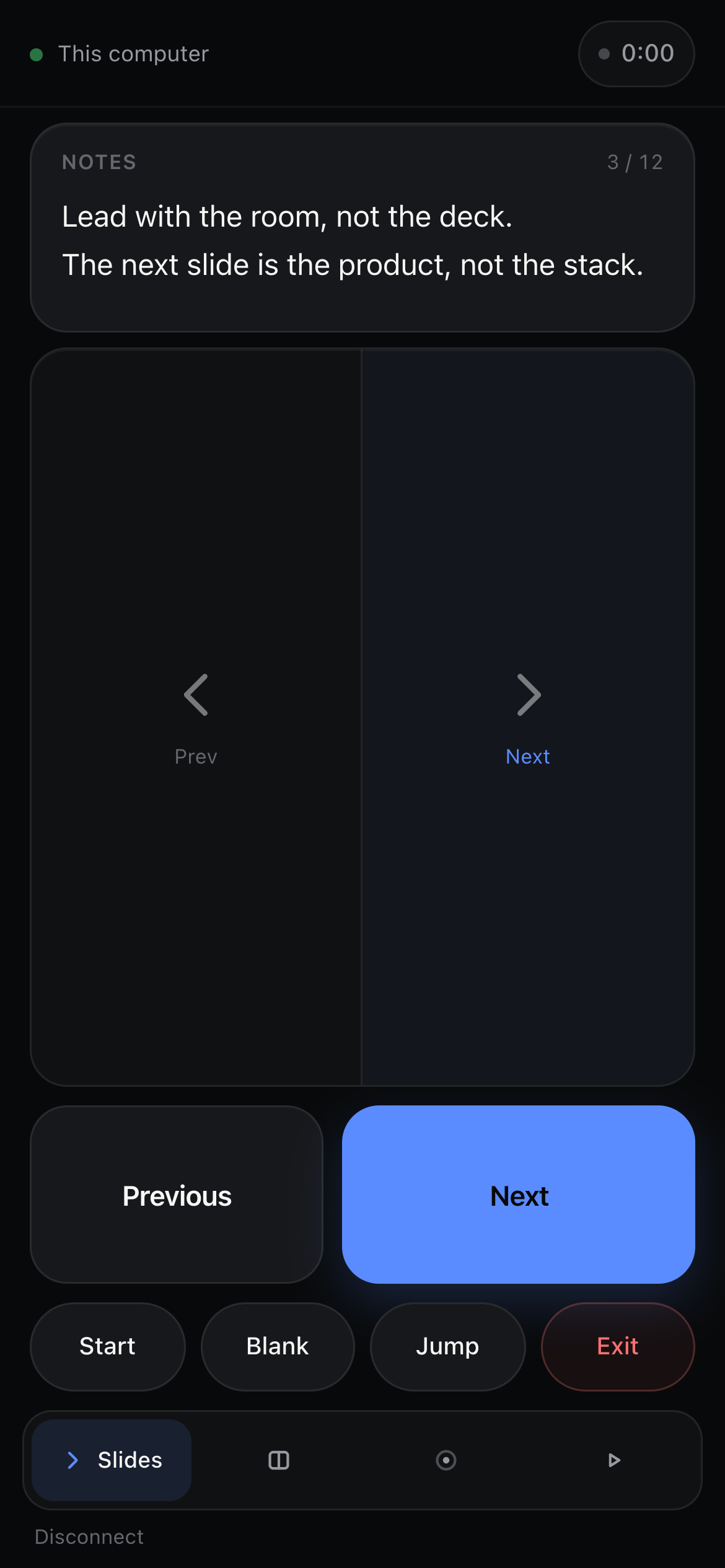
Only what this computer can actually do is shown. If it cannot, the control is not there.
Slides
Notes, jump, blank, and a timer sit on the same screen. The right side of the pad is Next, so you can change a slide without looking down.
Read them on the phone. They are read on this computer and sent only to that phone.
Go to a slide by number, when this computer can read the deck.
On the phone, for the talk. It is not uploaded.
Six digits, if the camera cannot see the code.
After you pair, the internet is not the path. This website never sees a session.
The phone talks to this computer on the local network. After you pair, the internet is not required.
Notes, the deck, and the pairing code stay on these two devices.
There is nothing to sign in to. This website is only the download.
Keynote and PowerPoint are told directly. A tab still gets the arrow keys. Slide files are never uploaded.
Keynote
On a Mac.
Driven through Keynote’s own interface, even if the Pilot window is in front.
PowerPoint
On a Mac or a PC.
Driven through PowerPoint’s own interface. Notes stay on this computer.
A browser tab
Google Slides, PDF, Canva.
The arrow keys. There is no Canva adapter. Slide files are never uploaded.
A clicker is a receiver. A cloud remote is a login. Pilot is the phone you brought.
Clicker
A USB receiver.
It goes to the next slide. Your notes stay on the laptop behind you.
Cloud remote
A login.
The talk goes through a server outside the room, so the venue needs internet.
Pilot
The phone you have.
No receiver. No account. The slides stay on this computer.
Install Pilot on the machine with the slides. The phone only opens a page.
Mac or Windows. This is the machine that has the slides. The phone does not get an app.
macOS asks once for the pointer and for apps that only listen to the keyboard. Keynote and PowerPoint are driven directly. Windows does not ask.
Pilot shows a code and a six-digit PIN.
Scan the code, or type the PIN.
Tap the right side of the phone to go to the next slide.
Mac or Windows. Scan the code on the phone you already have.
macOS
macOS 11 or newer. Unsigned: right-click Open the first time. Drag Pilot into Applications.
Pilot.dmg
Download for MacWindows
Windows 10 and 11. Unsigned: SmartScreen may warn — that is Windows, not a broken file. PowerPoint is driven directly.
Pilot Setup.exe
Download for WindowsPhone
There is no app to install. After Pilot is open on the computer, scan the code — or type the six digits.
Who made this
Pilot is a desktop app on the computer that has the slides, and a page that computer serves on the local network. Pairing is a token or six digits in the room. The public site is the download and the manual.
Made with security by Sneh Acharya
Four that matter in the room. More at the top of the list, or in Docs.
The phone and the computer must be able to see each other on the network. Some hotel and conference networks block that. A phone hotspot that both join, or a network you control, is the workaround. The internet is not the path.
If the deck is in a browser tab, Pilot sends the arrow keys. Keynote and PowerPoint are driven through their own interfaces. Slide files are never uploaded. There is no Canva adapter.
The phone is talking to your computer on the same network. After install, the internet is not required.
The pointer, laser, and keyboard fallback need it. Keynote and PowerPoint are told to change slides directly, even if the Pilot window is in front. Windows does not have this prompt.